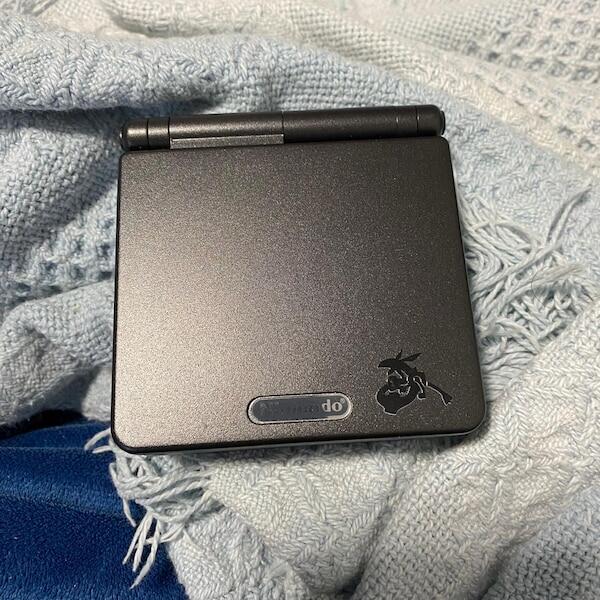

Connecting a Game Boy Advance SP to a GameCube through the official Game Boy Player takes about ten minutes once you have the right disc and cable — the confusion is almost always about region matching and cable ports, not the console itself. Skip the guesswork: the Game Boy Player only boots with a region-matched Start Up Disc, and the link cable does all the work between the handheld and the GameCube.
- Connecting a Game Boy Advance SP to GameCube requires the official Game Boy Player, a matching Start Up Disc, and a DOL-011 link cable.
- Region mismatch between the Start Up Disc and the GameCube is the single most common reason the setup fails to boot in 2026.
- A modded Game Boy Advance SP with USB-C charging still works fine with Game Boy Player — the mod doesn't touch the link port.
- Multiplayer titles like Pokemon Colosseum and Final Fantasy Crystal Chronicles need one link cable per connected handheld, up to four.
- Best for households running classic GBA titles on a big screen without buying a separate GBA display.
Why this matters
The Game Boy Player turns any GameCube into a GBA, Game Boy Color, or original Game Boy display station, output straight to the TV instead of the handheld's own screen. For anyone running a Zelda Triforce Edition Game Boy Advance SP or any other modded GBA SP, this is the cheapest way to play GBA titles on a television without buying separate capture hardware.
It also unlocks connectivity features baked into specific retro favourites — Pokemon Colosseum's Bonus Disc, Final Fantasy Crystal Chronicles' four-player co-op, and Zelda: Four Swords. None of that works without the physical link cable chain described below.
Before you start
- An original Nintendo Game Boy Player unit and its region-matched Start Up Disc. PAL discs boot PAL GameCubes; NTSC discs boot NTSC GameCubes. Mixing them stops the boot process cold, and this is the gotcha that catches most secondhand buyers in 2026.
- A GameCube-to-Game Boy Advance link cable (DOL-011), one per handheld you plan to connect.
- A charged Game Boy Advance, GBA SP, Game Boy Color, or original Game Boy. The Player draws its handheld-side power from the console's own battery, not the GameCube — a dead battery means a dead link even with everything else wired correctly.
Set up the Game Boy Player hardware
- Power off the GameCube completely before attaching anything.
- Flip the GameCube over and locate the bottom expansion slot, called the High-Speed Parallel Port.
- Slide the Game Boy Player unit into the slot until it clicks into place, then attach the plastic base cover that snaps under the console for stability.
- Power the GameCube back on.
Expected result: the console boots normally to the standard GameCube disc menu — the Player itself does nothing visible yet until a Start Up Disc is inserted.
Load the Start Up Disc and confirm the link
- Insert the region-matched Start Up Disc into the GameCube disc tray.
- Wait for the Game Boy Player logo animation to appear on screen. This confirms the GameCube has recognised the Player hardware.
- If nothing appears within 15-20 seconds, power cycle the GameCube with the disc already inserted rather than swapping discs mid-boot.
Expected result: you land on the Game Boy Player menu screen, which prompts you to insert a Game Boy Advance cartridge into the connected handheld.
Connect your Game Boy Advance SP with the link cable
- Plug one end of the DOL-011 link cable into the port on the Game Boy Player unit.
- Plug the other end into the link port on the top edge of your Game Boy Advance SP — the same port used for standard link cable multiplayer.
- Insert your GBA cartridge into the SP as you normally would.
- Power on the GBA SP. The console's own screen will typically go blank or show a static frame — expected behaviour, since video output now routes through the GameCube to the TV.
- On the Game Boy Player menu, select Start Game Boy Advance Game.
Expected result: the game boots full-screen on the television, and the GBA SP's face buttons control it exactly as a GameCube controller would with any other disc.
Using GBA-GameCube connectivity features
Some first-party titles do more than display on the TV — they use the link cable for genuine cross-console features. If that's what you're after rather than a simple display setup, the process differs slightly:
- Pokemon Colosseum / XD: Gale of Darkness Bonus Disc — connect a GBA SP running Pokemon Ruby, Sapphire, FireRed, or LeafGreen via link cable to receive bonus Pokemon such as Jirachi directly into the cartridge save.
- Final Fantasy Crystal Chronicles — up to four Game Boy Advance or SP units, each with its own link cable, act as individual player screens and controllers simultaneously. This is the one setup where the handheld screen actually stays active during play.
- The Legend of Zelda: Four Swords — bundled multiplayer that similarly needs one link cable per connected handheld, up to four players.
Each of these still routes through the same Game Boy Player hardware and disc — the difference is purely how many link cables run into the unit at once.
Troubleshooting
- Screen stays black on the TV. Confirm the Start Up Disc region matches the GameCube region. This causes more failed boots in 2026 than any hardware fault.
- Game Boy Player menu never appears. Reseat the Player unit in the expansion slot; a loose connection is common on units swapped between GameCubes repeatedly.
- GBA SP powers on but nothing happens on TV. Check the link cable is fully seated in both the Player's port and the SP's link port — a half-inserted cable often still lets the SP power on normally.
- Game freezes mid-play. Never disconnect or reseat the link cable while a game is running; the connection isn't hot-swappable and the GameCube won't recover without a restart.
- Controller input feels delayed. This points to a worn or third-party link cable rather than the GBA SP itself. A genuine DOL-011 cable resolves it in nearly every reported case.
Customise your workflow
Once the basic TV display setup works, the next decision is which handheld sits in the Player full-time. A dedicated unit with a fresh screen and USB-C rechargeable battery means you're not swapping consoles between portable and GameCube duty, and the battery stays topped up for TV sessions — which matters, because the Player runs off that battery the whole time it's connected.
Worth checking your link cable accessories too if you're planning four-player Crystal Chronicles sessions in 2026 — one worn cable in a chain of four is usually why a single player's screen won't sync.


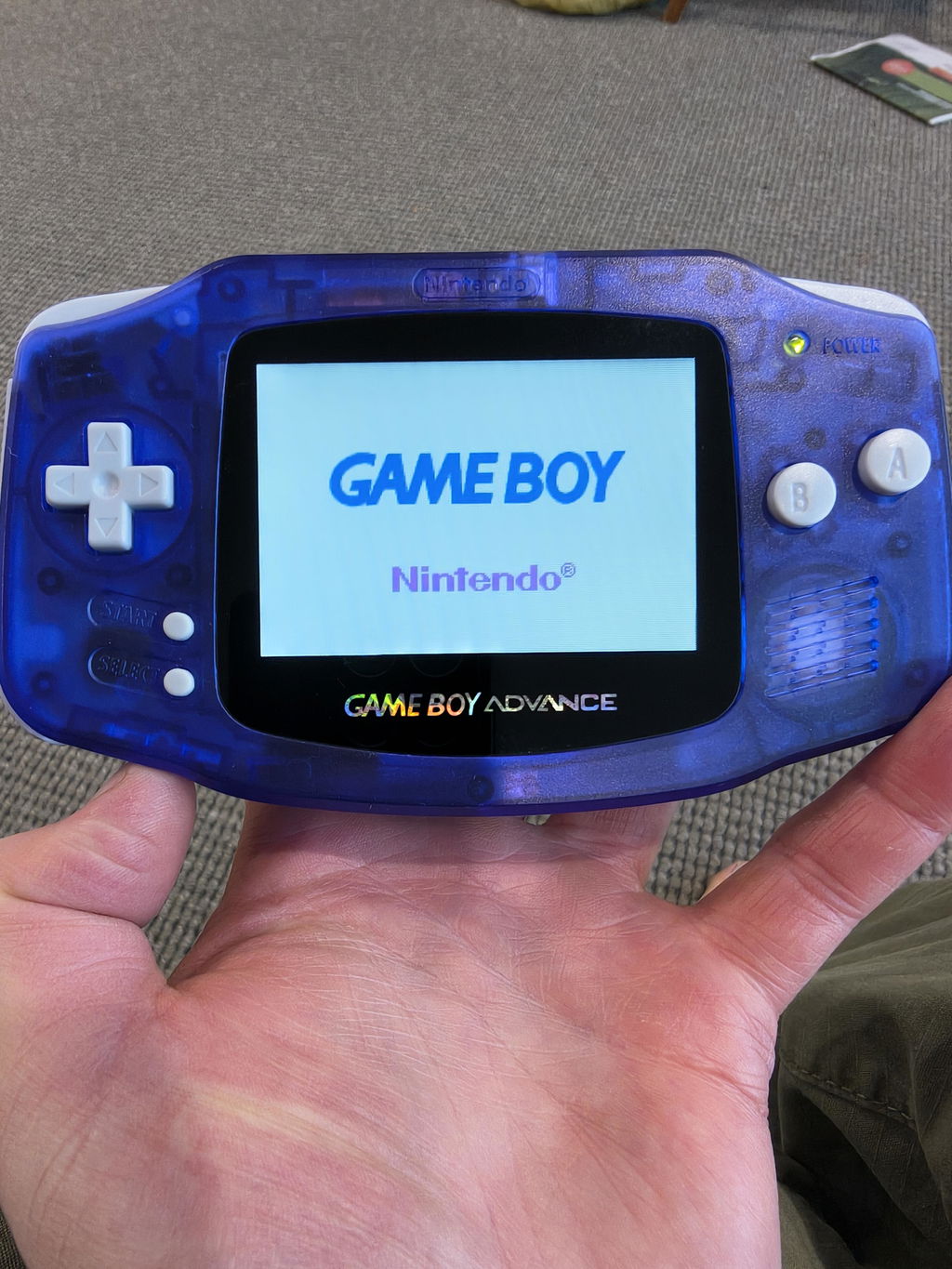
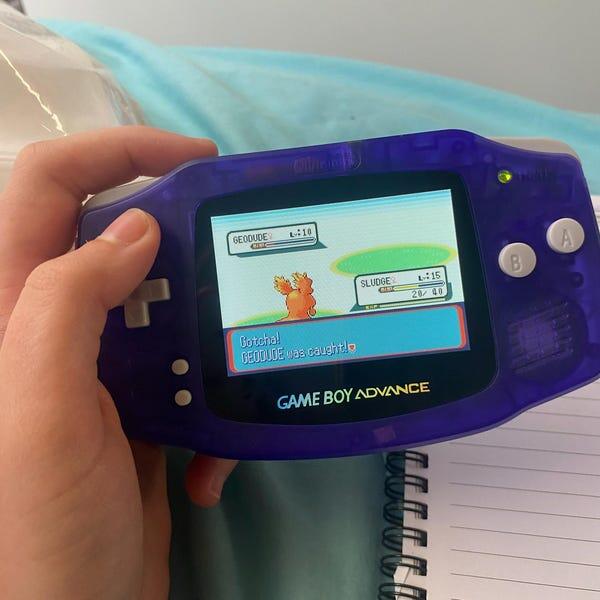
A modded screen and USB-C charging change nothing about link cable compatibility. The IPS screen mods sit entirely on the display side of the console, while the link port and cartridge slot stay stock. You get a brighter handheld for portable play and a fully compatible unit for Game Boy Player sessions on the TV — which is why Retro Fit builds every refurbished Game Boy Advance SP on original Nintendo hardware rather than a reproduction shell-and-board.
FAQ
Do I need a specific Game Boy Advance SP model to use Game Boy Player?
No. Any Game Boy Advance, GBA SP, Game Boy Color, or original Game Boy works with the Game Boy Player as long as you use the correct DOL-011 link cable and a charged battery.
Can I use a modded GBA SP with Game Boy Player?
Yes. A modded GBA SP with an IPS V5 screen or USB-C charging connects the same way as a stock unit, because the mods affect the display and battery rather than the link port.
Why does my Game Boy Advance screen go black when connected to Game Boy Player?
That is normal. Video output routes through the GameCube to the TV once the link is active, so the handheld screen stays blank during gameplay except in link-multiplayer titles like Final Fantasy Crystal Chronicles.
Does the Game Boy Player Start Up Disc need to match my GameCube region?
Yes, and this is the most common setup failure. A PAL Start Up Disc will not boot on an NTSC GameCube and vice versa.
How many Game Boy Advance consoles can connect to one GameCube at once?
Up to four, each with its own link cable, for multiplayer titles such as Final Fantasy Crystal Chronicles and The Legend of Zelda: Four Swords.
Can I charge my GBA SP battery while it is connected to Game Boy Player?
The Player does not supply charging power to the handheld. The console runs on its own battery for the whole session, so starting with a full charge matters more than charging mid-session.
Is a third-party link cable safe to use with Game Boy Player?
It usually works, but input delay and dropped connections are far more common than with a genuine DOL-011 cable, especially in multiplayer setups running more than one handheld.
What happens if I disconnect the link cable while a game is running?
The GameCube will typically freeze or lose the connection entirely, because the link is not designed for hot-swapping mid-session. You will need to restart the console.
One last thing
Most people set up Game Boy Player for the display convenience and never touch the connectivity features. But Pokemon Colosseum's Bonus Disc is still one of the only legitimate ways to add certain event Pokemon to a Ruby, Sapphire, FireRed, or LeafGreen save in 2026 — and it only works through this exact link cable setup.